Job Due Calendar
A job must be in edit mode to allow viewing the job due calendar.
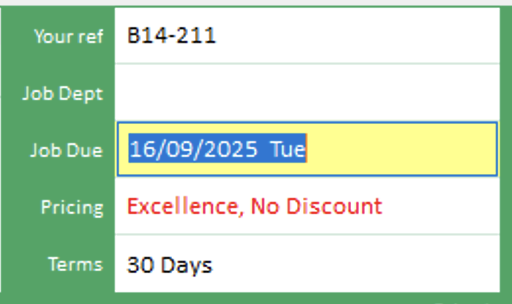
Select the Job Due box to view the job due calendar, either by double clicking on the Job Due box, or move the highlight to it and press Enter on your keyboard.
Or, use Job menu > Due date.
The calendar will show the number of jobs due on each day, and will have any "closed" days marked in red.
(Note, to view a list of jobs due by date, from the main form using Jobs button > Booked In by Due Date)
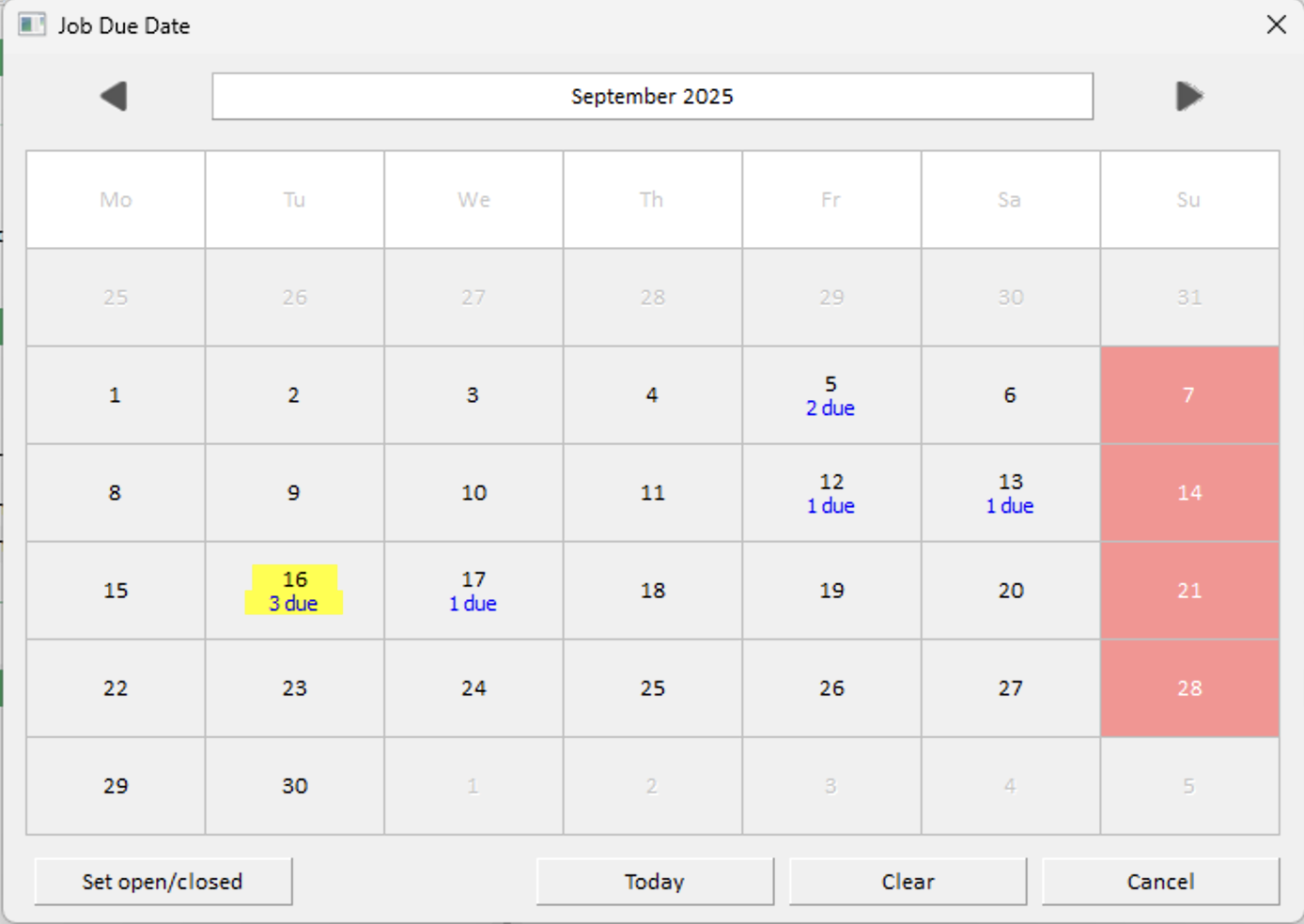
Use the cursor keys on your keyboard to move the yellow highlight around the days.
You can select a date as the due date for the job, by pressing the Enter key on your keyboard, or by clicking the date with your mouse.
Individual days can be set as open or closed by highlighting the date in yellow, then clicking the "Set open/closed" button.
To mark all Saturdays or Sundays as open or closed, use the control in Setup Wizard > New Jobs
Click the Today button to mark the job as due today.
Click the Clear button to set the job as not having a due date.