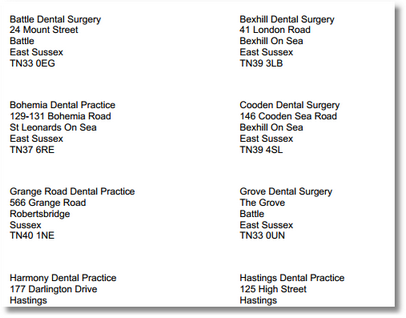
Address Labels
Prints Avery style address labels for given customer types. You can select from a number of pre-configured Avery label types and specify on which label to start printing from. (such as if you've already printed the top 3 labels on your sheet, you can start printing after these)
From the Transactor Menu bar, choose Report > Customers > Address Labels
Choose the Customer Type to print, such as Surgeons or Practices
Choose the Tag (optional) of customers to print. You should have tagged your customers previously through the customer's details
Select the A4 Label Type, which gives you a choice of standard Avery label sheets
You can specify to Start at Label to allow you to start printing further down the page
Example
Customer Type: Practice A4 Label Type: L7163 Start Column:1 Start Row:1
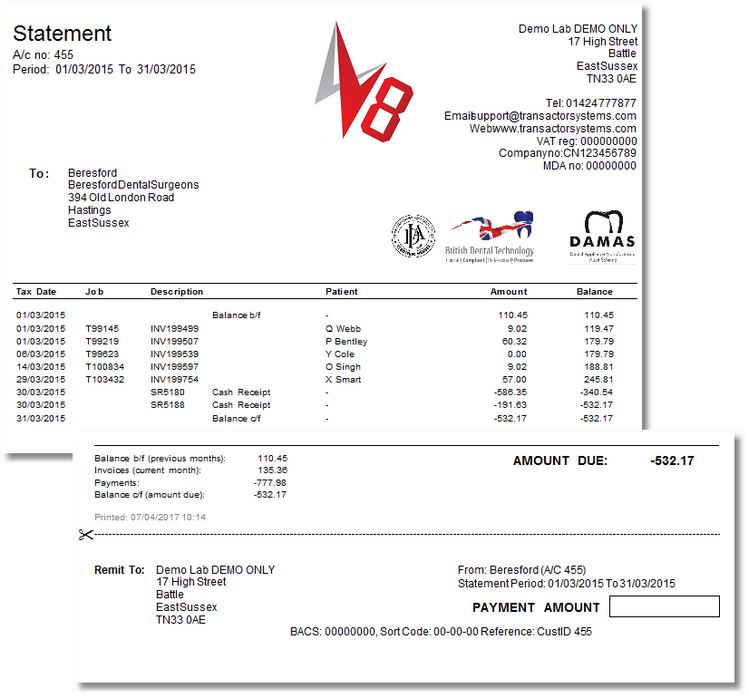
Customer statement for a specified date period. You can run the same statement but for a specific complete month by using the Statement (monthly) report instead.
Remember, if you are intending to run multiple reports (such as for your month-end) you should use the Batch Report Manager.
From the Transactor Menu bar, choose Report > Customers > Statement
Select the Customer ID to run the report for, or use the current customer on the main form
Enter the First Date of the period to run the report for
Enter the Last Date of the period to run the report for
Example
Customer: 455 First Date: 1 sep Last Date: 30 sep
Comments
This report includes a mini summary with total Debits and Credits for the period so it's possible to see the job total. Includes a Remittance slip. A 'Prompt payment incentive message' is automatically printed if the Customer has a non-zero Order Discount % and Early Pay %. Both of these can be set on the customer's details page.
This report does not have an aged debt summary as this is provided on the Statement (with aged debt) and Statement (unpaid invoices) reports.
The Patient column in this example contains Patient References and Patient names. This is a configurable option through the customer's details page - where you can add a tag to "Do not print patient name on invoice or statement" to prevent the patient names appearing.
A customer statement for a specified complete month.
Remember, if you are intending to run multiple reports (such as for your month-end) you should use the Batch Report Manager.
From the Transactor Menu bar, choose Report > Customers > Statement (monthly)
Choose the Customer ID to report on, or use the current customer on the form
Select the Period to report on - ie. which complete month
The printed output and report comments are the same as the Statement (date range)
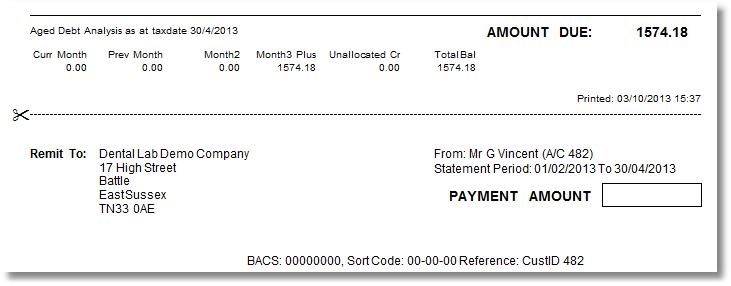
A customer statement for a specified month with an aged debt breakdown at the bottom.
Remember, if you are intending to run multiple reports (such as for your month-end) you should use the Batch Report Manager.
From the Transactor Menu bar, choose Report > Customers > Statement (with aged debt)
Select the Customer ID to run the report for, or use the current customer on the main form
Enter the First Date of the period to run the report for
Enter the Last Date of the period to run the report for
Example
Customer: 482 First Date: 1/2/2013 Last Date: 30/4/2013
The printed output and report comments are similar to the Statement (date range) except with an aged debt breakdown..
A customer statement listing just invoices which have a balance to pay
Remember, if you are intending to run multiple reports (such as for your month-end) you should use the Batch Report Manager.
From the Transactor Menu bar, choose Report > Customers > Statement (unpaid invoices)
Select the Customer ID to run the report for, or use the current customer on the main form
Enter a date to show Unpaid items upto date
Example
Customer: 482 Unpaid Items upto date: last month end
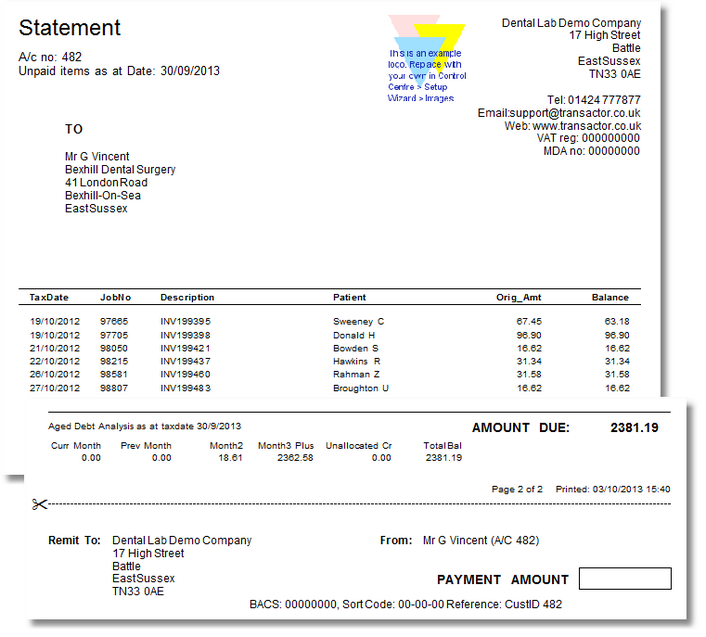
Comments
This report includes an aged debt analysis as at the printed date, and includes a Remittance slip.
Provides a summary of all the invoices for the given month or date period, for a specified customer
Remember, if you are intending to run multiple reports (such as for your month-end) you should use the Batch Report Manager.
From the Transactor Menu bar, choose Report > Customers > Summary Invoice
or
From the Transactor Menu bar, choose Report > Customers > Summary Invoice (monthly)
Select the Customer ID to run the report for, or use the current customer on the main form
Enter the First Date of the period to run the report for
Enter the Last Date of the period to run the report for
or
Enter the Period to use, in the case on the monthly version of the report
Example
Customer: 482 First Date: 01/05/13 Last Date: 30/06/13
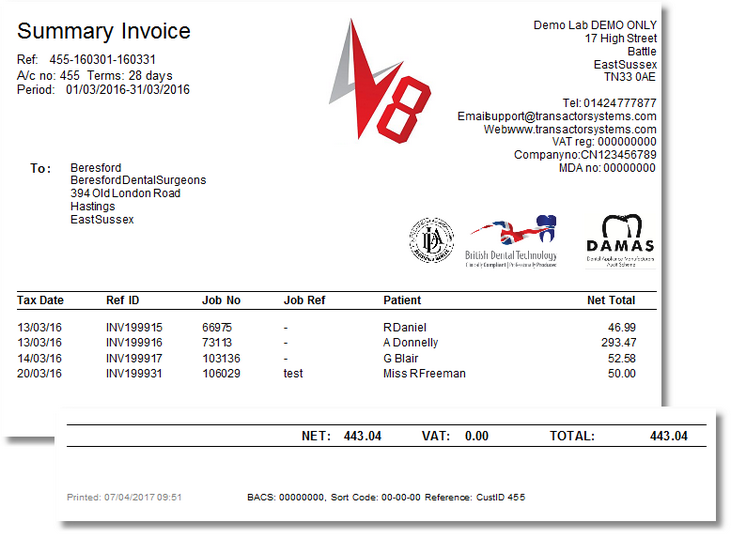
The Patient column in this example contains Patient names. This is a configurable option through the customer's details page - where you can add a tag to "Do not print patient name on invoice or statement" to prevent the patient names appearing.
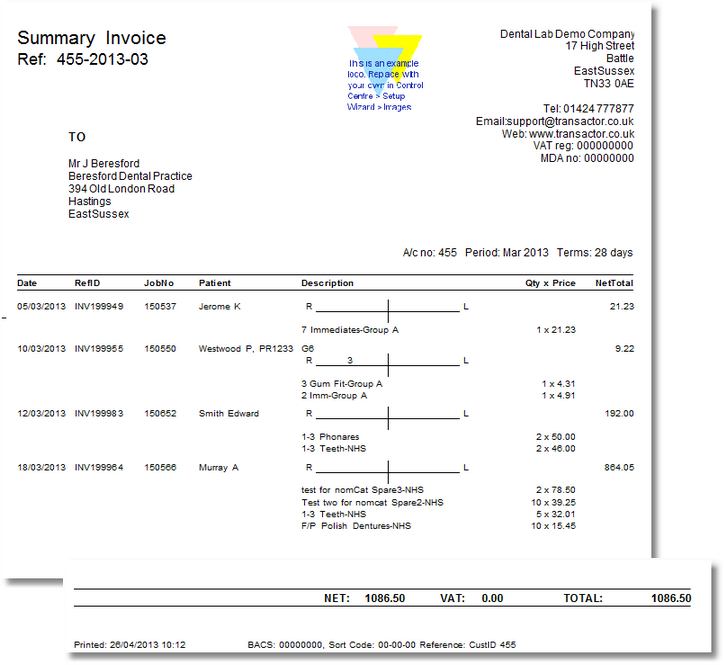
A summary invoice, with line-item details for each job. Created for the the given month or date period
Remember, if you are intending to run multiple reports (such as for your month-end) you should use the Batch Report Manager.
From the Transactor Menu bar, choose Report > Customers > Summary Invoice
or
From the Transactor Menu bar, choose Report > Customers > Summary Invoice (monthly)
Select the Customer ID to run the report for, or use the current customer on the main form
Enter the First Date of the period to run the report for
Enter the Last Date of the period to run the report for
or
Enter the Period to use, in the case on the monthly version of the report
Example
Customer: 455 Period: March 2013
Notes
You can control which non-financial items (eg. Notes or Product codes if their value is zero) are hidden from printouts such as these. Search for Tags in the Transactor Help, available from the Help menu of Transactor.
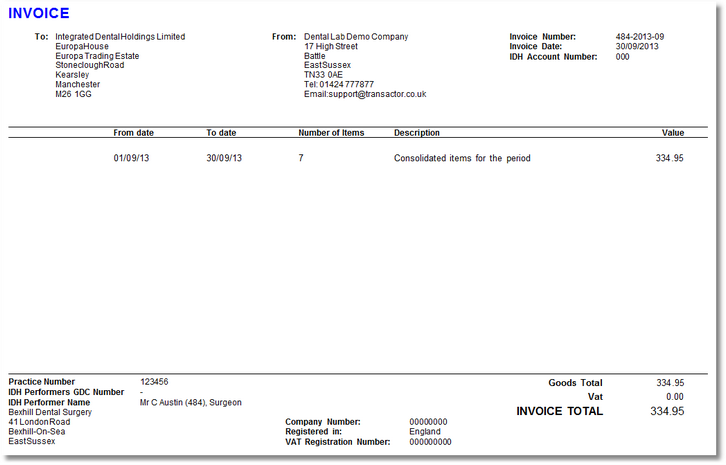
A summary invoice, in the layout style requested by the IDH dental group.
This report is only available through the Batch Report Manager and you must have prepared your Transactor according to the instructions in the IDH setup guide.
Note that from 1st January 2015, IDH head office is expecting to receive a CSV file invoice (using Report menu > Special Reports > Electronic Invoice IDH Group) , rather than this summary invoice.
From the Transactor Menu bar, choose Tools > Batch Report Manager
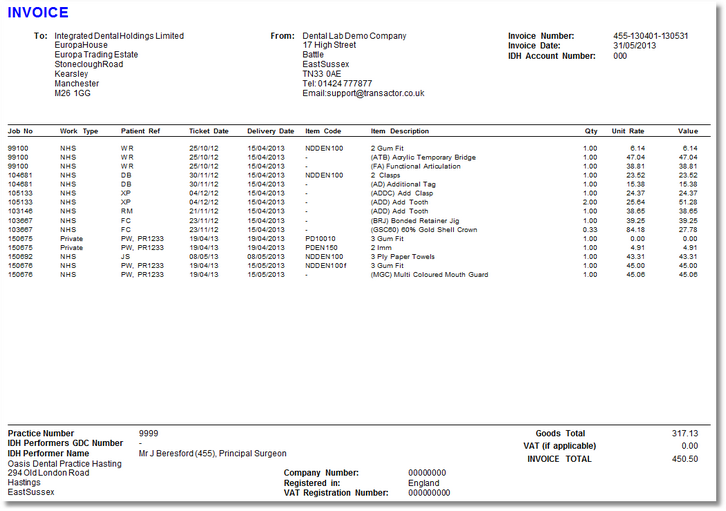
For the above report to be able to display the 3rd party product codes (in the Item Code) column, you'll need to populate the Product Mapping table Using the Product Code Mapper. Ensure you check through the IDH setup guide before running this report.
An IDH Summary invoice, in the simplified 'Brief' layout style requested by some dental labs.
This report is only available through the Batch Report Manager and you must have prepared your Transactor according to the instructions in the IDH setup guide.
Note that from 1st January 2015, IDH head office is expecting to receive a CSV file invoice (using Report menu > Special Reports > Electronic Invoice IDH Group) , rather than this summary invoice.
From the Transactor Menu bar, choose Tools > Batch Report Manager