Customer discounts
LabManager offers several ways to offer and apply discounts to your customers this topic will describe the main ones. We'd recommend discussing pricing and discounting policy with your accountant.
There are five main methods you may use:
These types are described below.
Line discount (Order discount)
A common form of making prices variable for each customer, using one of the existing price bands as a base point. This is sometimes called the Order Discount. The Discount % is inherited onto each new order, from the Customer's Line Discount % setting. To change the Customer's 'default' line discount, with a customer selected on the Main Form, choose Customer menu > Edit.
To over-ride this discount % on a single order, with the order on the Main Form in Edit mode, from the Job menu, choose Pricing / Discount, or double-click on the Pricing box.
To over-ride the Product's line discount eligibility, tick/un-tick the 'Allow Line Discount' box when selecting the product onto a line item row. If you want a product code to default to allow/disallow line discount you can set this in the Product's properties window.
Pros:
Selective discount by product. Some products may be eligible, some not. Products that are eligible for the discount are highlighted with an asterisk in the price column.
Discount is apparent, affecting the live price and hence Invoice amount. The discount amount given is shown at the bottom of the Main Form and the Invoice.
Each customer can have their own default Line Discount %.
Cons:
None
Example
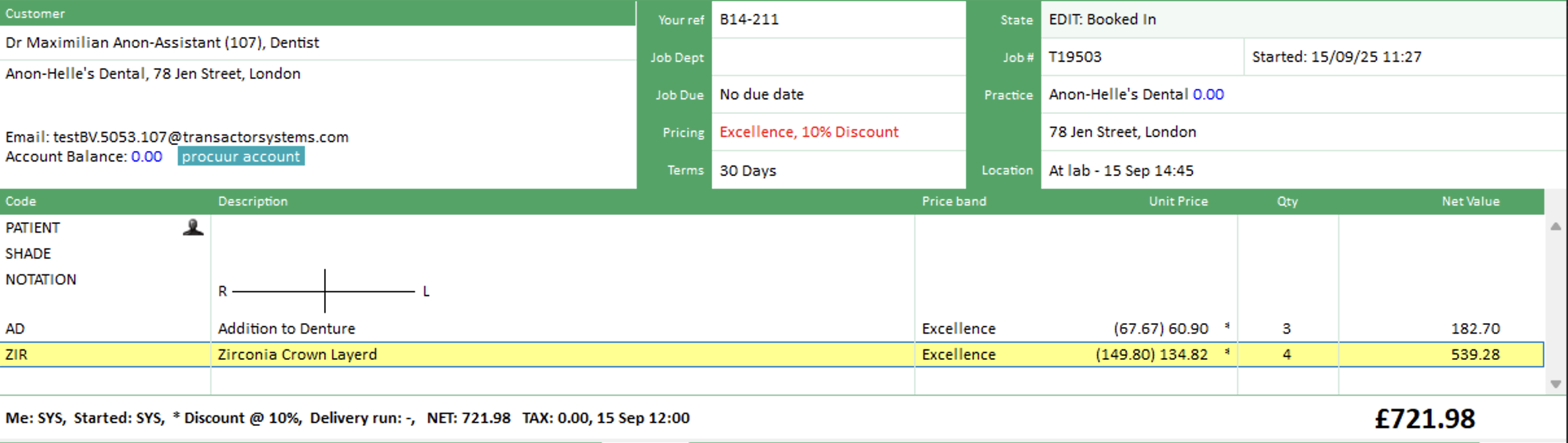
In the screenshot below we have set the line discount as 10%, as indicated in the Pricing box with the red text.
The line items show a discount has been applied with the full price show in brackets, then the discounted price, then a * symbol.
The * symbol is explained in the total bar as * Discount @ 10%.
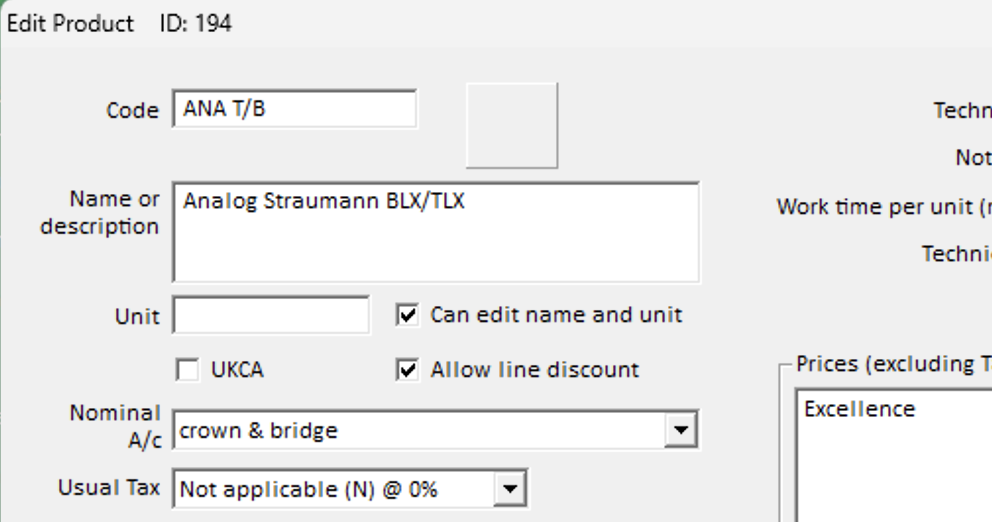
To make a product eligible for Line Discount, In the product properties setup, tick the box 'Allow Line Discount'.
Early payment discount (EPD)
This is a great way of rewarding customers who make payment within your terms. They don't actually get the discount credited to their account until after you receive payment.
The amount they stand to save by remitting the statement due amount early is clearly printed on some of the statement reports. LabManager statements (Customer > Statement Monthly or Statement) compose the personalised message by looking at each customer's customer's 'Early Pay %' and Early Pay Days values.
If you regularly add new customers, and you want a default EPD % and Days to be used, this can be controlled in the Control Centre > Advanced > Customer Types.
Pros:
Selective discount by customer type.
Potential discount amount is made very clear on the customer statement, and the date the payment is required by to earn it.
Good incentive for customers to pay promptly each and every month
The discount amount that is credited for each previous statement will be clearly listed on the next statement.
Cons:
A little extra admin, each time a remittance is entered into LabManager, a corresponding Credit needs to be added for the discount stated on the customer's last statement.
You can keep paper or paperless copies of all statements you send out. For example as PDF files on your PC. The Batch Report Manager makes this easy.
Considerations
If you are using the Summary Invoice Monthly, for sending one bill per month, you can still make use of the Early Payment Discount mechanism. Print your usual Summary Invoice, but also attach a copy of the normal Statement monthly as a guide (and remittance slip) for the customer. The two documents complement each other.
Example
This statement shows the prompt payment terms in red, indicating that if the full amount accrued in the month is paid within 7 days, then a 10% credit will be placed on the customer account.
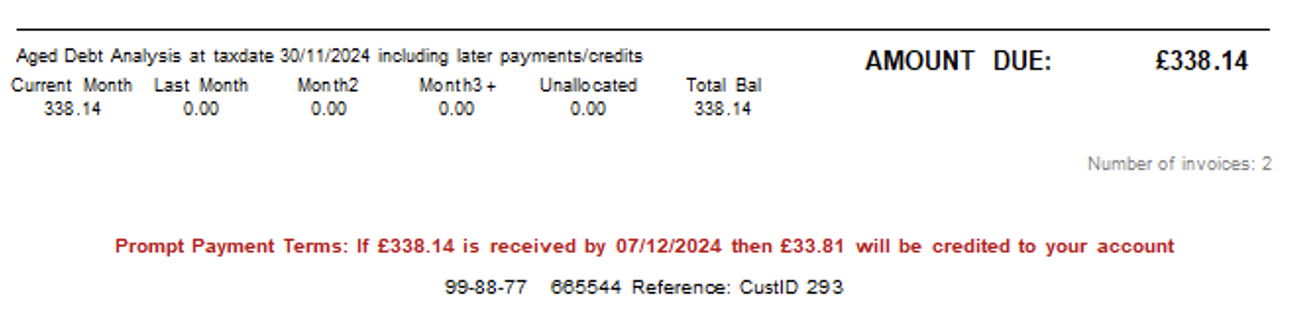
If the amount is received on time, enter the payment amount on the customer's account, then add a credit on the account (as stated on the Statement).
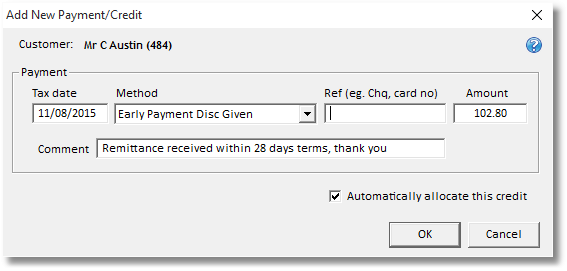
To give an Early Payment Discount Credit:
With the Customer selected onto the Main Form :
|
o |
From the Customer menu, choose Add Payment/Credit |
|
o |
Check the Tax Date is how you want it. The same date as the payment received date is usually good |
|
o |
Choose method 'Early payment disc given' |
|
o |
Enter the amount and choose OK. |
Tip:
If you are entering this credit about the same time as you received the remittance (recommended) then you can probably leave the Tax date as it is. The credit will be very visible on the Customer's next statement. Change the Tax Date if you want this item to appear on a different month's Statement.
For the discount amount, look at the Customer's statement they were sent, the amount and the terms are in the remittance area. If you don't do printed copies, simply run the Report to preview window to take a look.
To set the Early Payment Discount for a customer:
With the Customer selected onto the Main Form :
|
o |
From the Customer menu, choose Edit.. |
|
o |
Set the Early Pay % and Early pay Days |

Personalised 'special' price lists
It is possible to create as many price bands as you like, but do bare in mind that too many price bands can make it confusing for your staff and your customers. Mistakes cannot be spotted easily and there will be more administration overhead.
Unless you have quality/grade information encoded in your product codes, eg. N-PBC, P-PBC for NHS and Private Porcelain Bonded Crown respectively, you would probably have a price band for each of your quality grades. For example NHS, INTERMEDIATE, PRIVATE.
Before we discuss what to do if 'special' prices are asked for, check you are familiar with the different product coding methods. Product codes which carry Quality/Grade information, and Product codes one per product and used in conjunction with separate price bands. See Product Coding and Price Bands
If your sales team come back to you stating "we've got to do something to gain / retain this customer who's saying he doesn't want to pay more than £ x.xx for Product Y for grade Z" - don't create another price band, offer a discount off one of your existing price lists.
The danger of inconsistent or over-complicated price rules
Try not to create more 'personalised price lists'. Offer the customer a Line Discount off one of your existing price lists, or better still, a higher Early Payment Discount (EPD %). If you can't satisfy the customer by bringing a specific product's price down enough from one of your existing price lists, then there are other better ways to deal with it.
One way is to explain to the customer that you'll offer them an extra generous EPD % (or Line Discount) off their monthly bill providing your payment terms are met. The potential savings for the customer are greater than their expectations. It's an offer too good to refuse, therefore you have a win-win situation. You are deriving prices from one of your standard price lists, and (in the case of using the EPD % as the carrot) you have an excellent incentive for your customers to consistently pay within your terms.
Can't afford the discounts? Think again. How much is it costing your business in admin and cash flow loss, chasing up late payments. How many times does a long term debt end up getting entrenched or even written off? Remember that in your annual price list reviews you can add a small silent increase to compensate so you could end up with tight cash flow, and happy customers. "The carrot is better than the stick".
Custom product price
More useful for a one-off discount, it is possible to enter a custom price when adding a product to a job.
You must configure the price band to allow over-riding a product's price. You do this by editing the price band from the Price Bands page of the Setup Wizard.
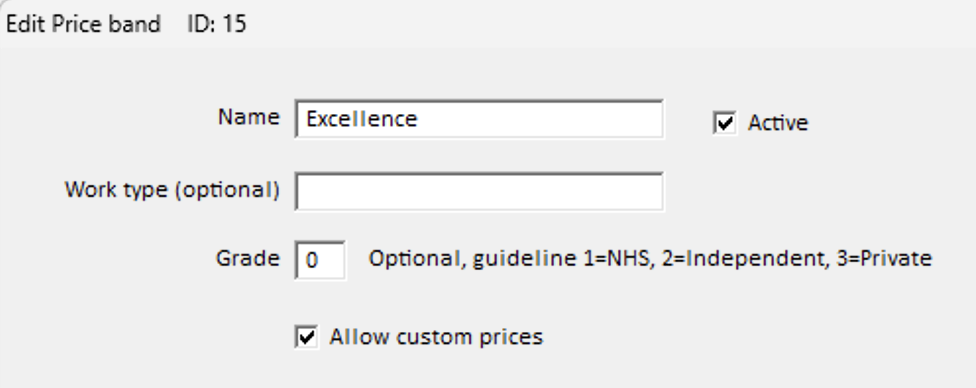
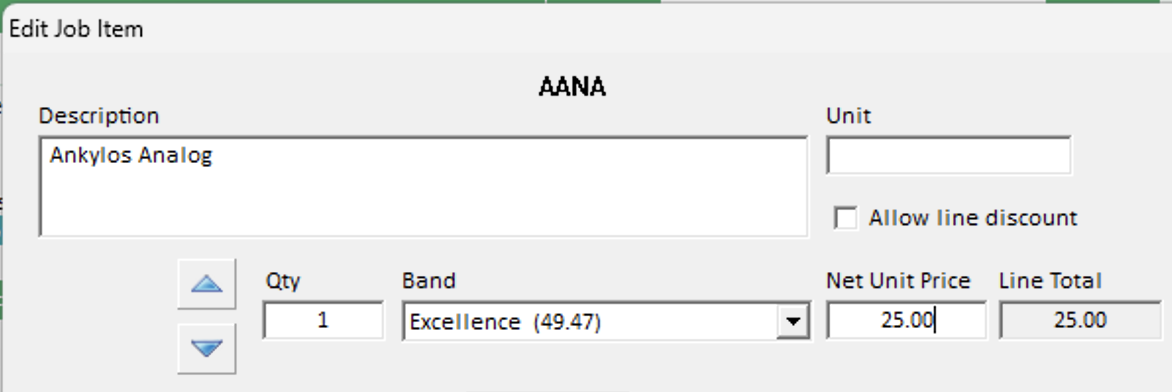
Once the "Allow custom prices" box is ticked, when you add a product to a job using that price band, you will be able to enter a custom price.
Credit product
It's possible to add a negative priced product to a job, so you could create a dedicated product for the purpose of putting a credit on jobs.
So, firstly create a product in Setup Wizard > Products.
For clarity, you might want to name this product something obvious like "Credit" or "Discount".
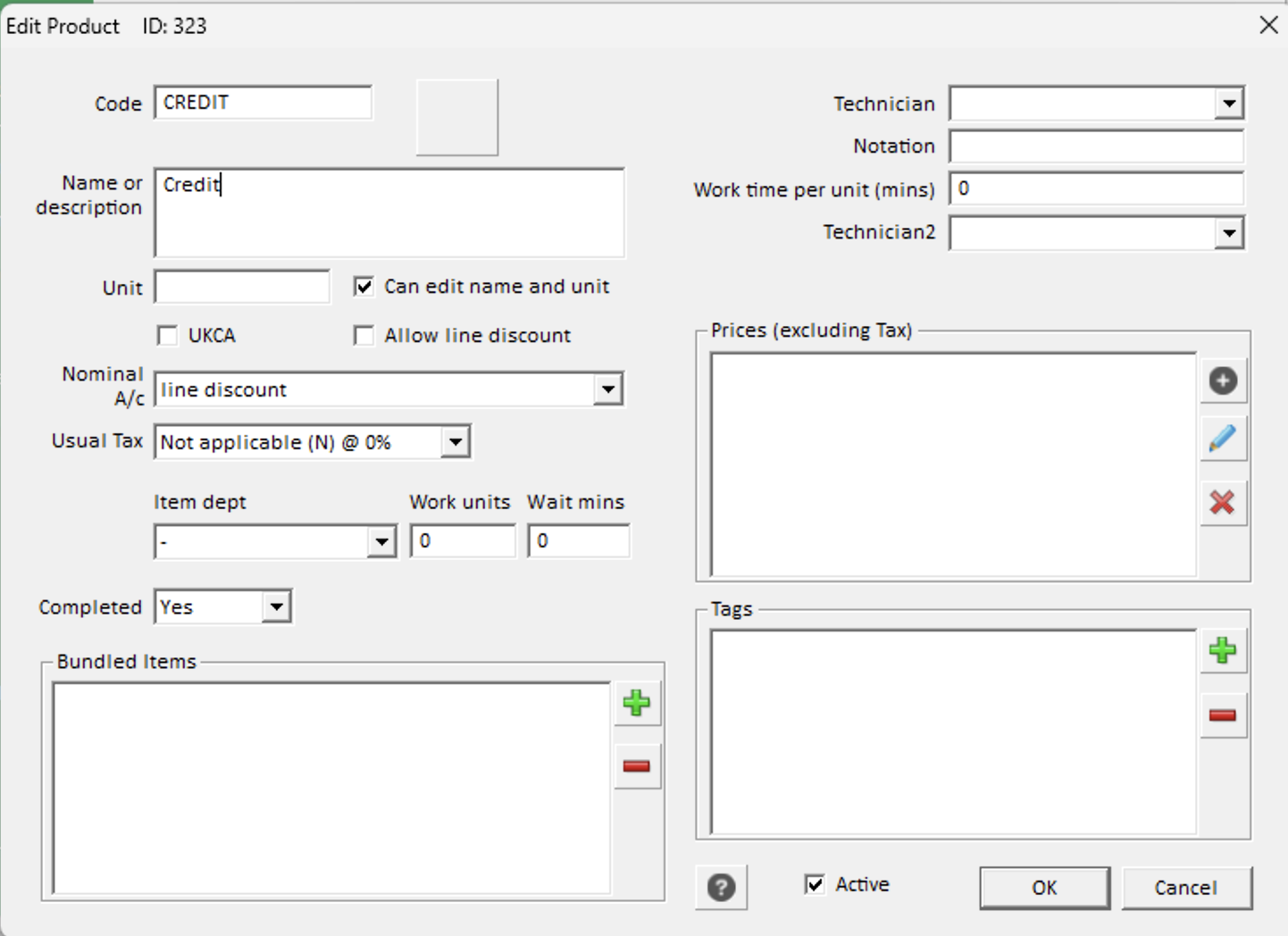
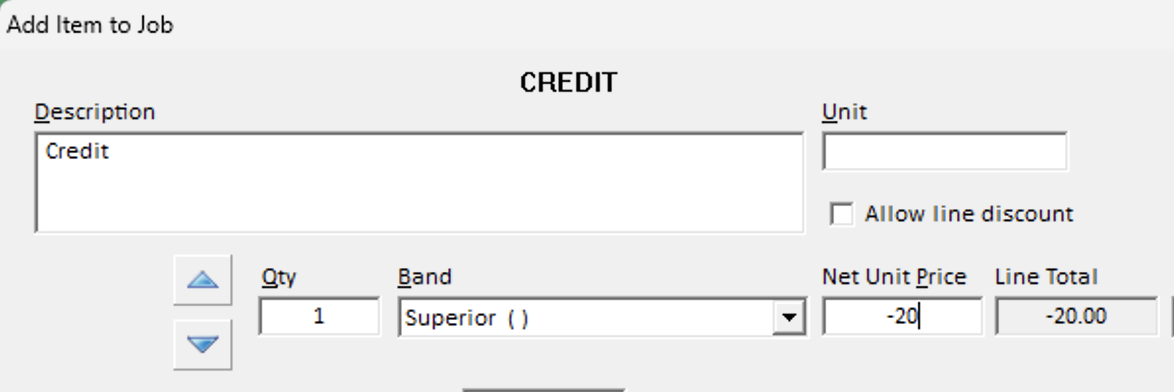
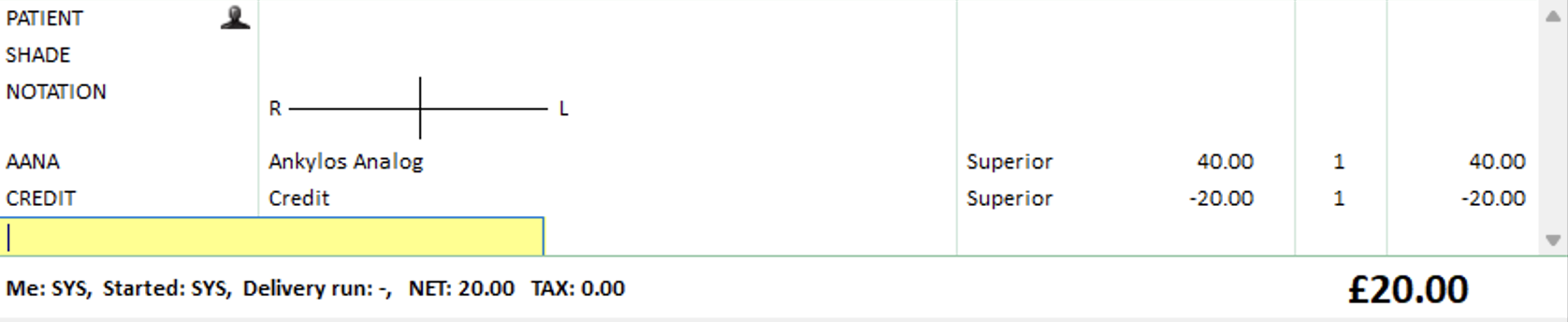
Now, you can add this product to a job, and enter a NEGATIVE price so this acts as a discount.