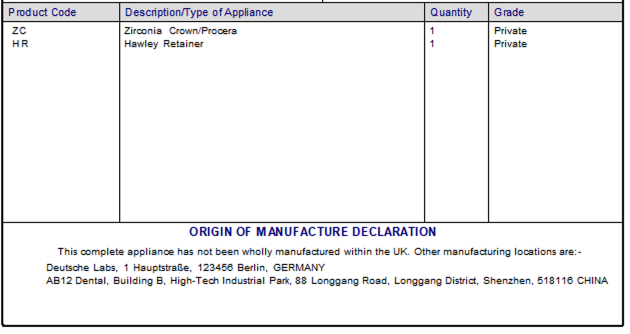
Origin of Manufacture Declaration
LabManager can produce a patient statement that complies with General Dental Council (GDC) guidelines and UK GDPR data protection rules.
This includes a declaration of manufacturing locations where products have been subcontracted or imported from locations other than the UK.
By default, the manufacturing origin on the patient statement describes the products being manufactured in the UK.
If any of your products have been manufactured at other locations, you can add ORIGIN note items to the job, and these instruct LabManager to use a declaration that points out there are items manufactured outside of the UK, and uses your own text to show the location addresses.
You can either set up your products with bundled ORIGIN note items, so that the correct location text is always automatically added to your jobs, or you can manually add ORIGIN note items on-the-fly.
Step 1 - Create your ORIGIN note items
In the Control Centre, move to the Products page.
Either edit an existing ORIGIN note item, or create a new one using the yellow note button.
To be correctly identified by LabManager as a manufacturing location, the ORIGIN note item code must begin with the whole word ORIGIN. (see the screenshot below)
Do not edit the ORIG_ note items (ORIG_DEFAULT and ORIG_OTHER), unless you need to change the first line of the manufacturing statement - usually you will not need to do this. For reference, the ORIG_DEFAULT text is used when all items are manufactured in the UK, and ORIG_OTHER is used when LabManager determines some items have been manufactured outside of the UK.
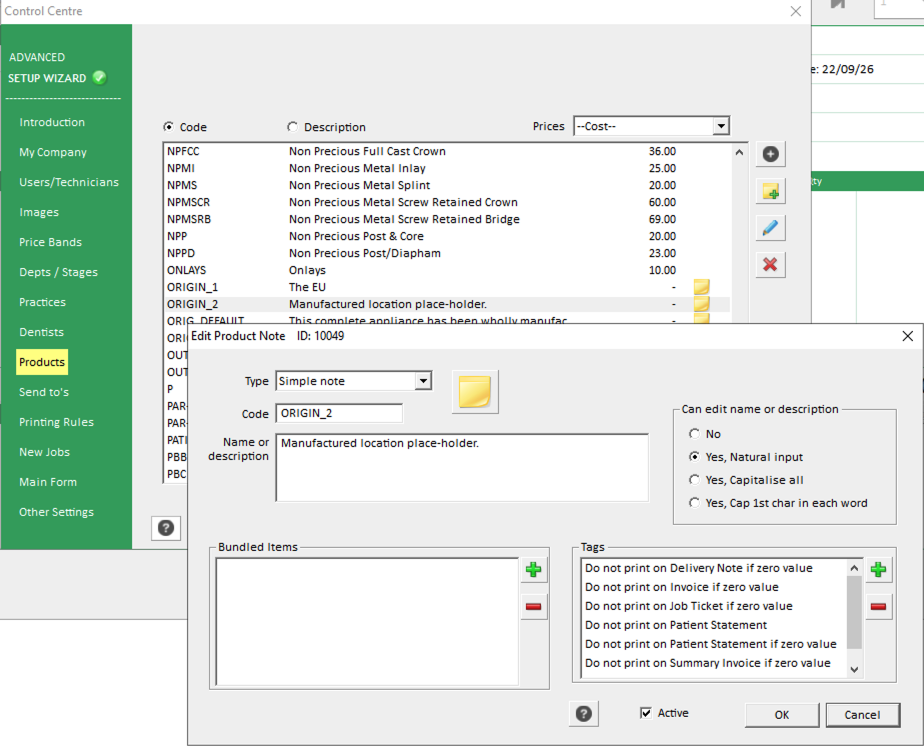
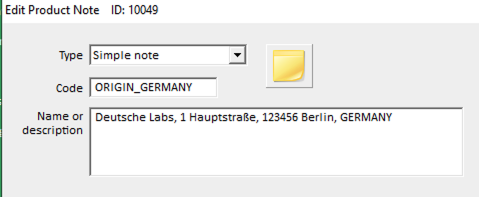
Edit the "Name or description" of the ORIGIN note item to represent the overseas manufacturing location. You should include the full address of the facility.
You can edit the "Code" as appropriate, but you must ensure it always begins with the word ORIGIN or LabManager will not recognise it as a valid location.
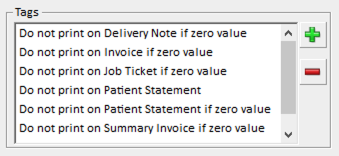
Finally, you should add the tags to the simple note item to prevent it from appearing on invoices, job tickets, patient statements (within the item list) etc.
Do this by clicking the green plus symbol next to the "Tags" box, and adding either individual "Do not print on..." tags, or select them all.
Note that you should add the "Do not print on patient statement" tags as you do not want the locations to appear within the list of items on the patient statement. The location will always appear in the terms at the bottom of the patient statement.
Step 2 - Optionally add the locations as bundled items on your products
If you always outsource particular products, you can add the ORIGIN items as bundled items on those products. This way, the location is always added automatically whenever you add that product to your jobs.
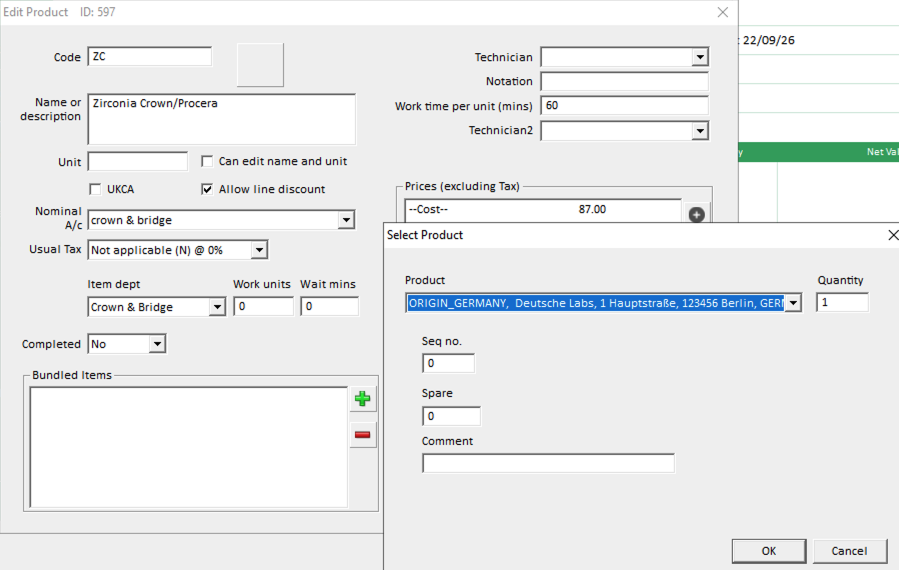
To do this, edit the properties of your product, click the green plus symbol beside "Bundled products" and choose your ORIGIN note item.
In these screenshots, we are configuring our Zirconia Crown as always being outsourced to our German supplier.
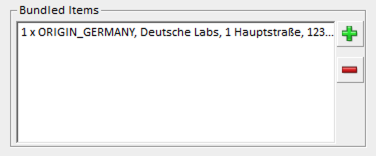
Setup is now complete!
Now, whenever you add your configured products (such as the ZC Zirconia Crown, in our example) the location declaration is also added automatically to the job - you can see the origin is indented in the screenshot.
You can also manually add the origin location to your jobs the same as any other product, by selecting the ORIGIN note item from your list of products.
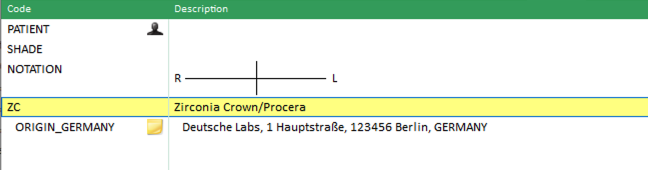
When you produce a patient statement, the location text is shown at the bottom of the document. As you have tagged the ORIGIN note item to not print on the patient statement, it will not appear as a separate item. (eg. below our Zirconia crown product).
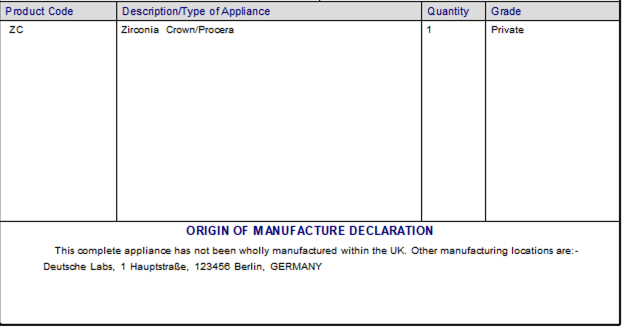
If you have multiple manufacturing locations (either because you've added multiple bundled ORIGIN note items to a product, or you have multiple products on a job, each with their own bundled ORIGIN note item), then all addresses are listed in the Origin of Manufacture Declaration.