A video covering customer history and payments is available below.

Select a customer onto a Main Form.
Click Customer History on the toolbar, or use Customer menu > History.
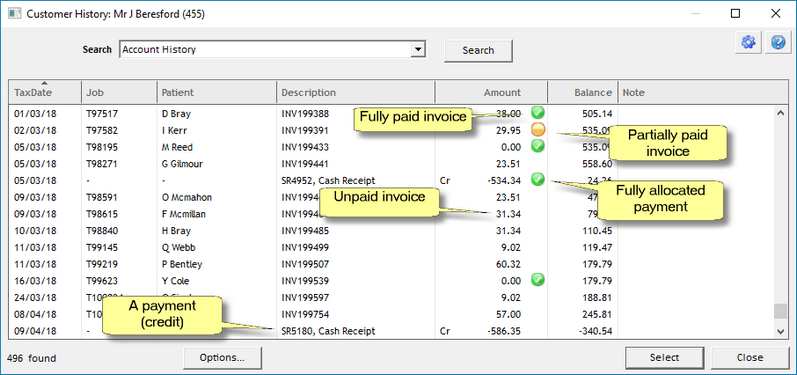
From this window, you can see
Booked in jobs
Booked out ongoing jobs
Booked out complete jobs
Jobs on hold
Credit notes
Payments
Green bubbles indicate fully paid jobs, or fully allocated credits/payments.
Orange bubbles indicate a partially paid job, or partially allocated credits/payments.
When a payment/credit is added to a customer's account, Transactor also needs to know which invoices this credit will pay-off. If you don't (or can't) fully allocate a payment, it will show an orange bubble beside it and this unallocated amount will show on some of the monthly reports.
Viewing a job
From the customer history screen you can select jobs onto the Main Form by double-clicking them, or clicking them then pressing Select.
You can view a quick preview of a job by selecting it then pressing the spacebar.
Deleting a payment or credit
With payments and credits you can right click on them and choose Delete from the menu.
If Transactor won't let you delete a credit it's because their tax date is prior to the accounting lock date which we covered in the previous topic. You can find this setting in Control Centre > Advanced > Accounting Rules.
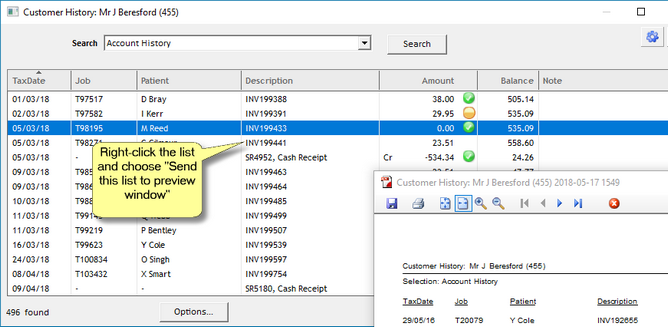
Any list like this can be right clicked and sent to a preview window where you can print it.