Utility - Re Allocate payments for customer
Find this utility in Tools menu > Utilities.
This utility will automatically re-allocate all payments for one or more customers. LabManager will firstly unallocate all credits on the customer's account and then re-allocate each credit automatically working from the oldest credit up to the most recent. "Credits" includes payments, adjustments and credit notes.
You will lose ALL allocations you have applied to the chosen customers, and LabManager will replace them with auto-applied allocations.
Only use this utility if this is what you require.
Always make a backup before making any drastic changes such as this, and consult with Transactor Support for advice.
To re-allocate all payments for one customer
|
• |
On the Main Form, select the Customer |
|
• |
From the Tools Menu, choose Utilities > Re-allocate payments for Customer |
|
• |
In the Customer box, choose 'Current Customer on Main Form' |
|
• |
Click OK |
|
• |
The re-allocation will process and a confirmation message will appear in the Preview window when complete, which can be closed. |
Use the Customer History window to see the results.
To re-allocate all payments for all customers
|
• |
From the Tools Menu, choose Utilities > Re-allocate payments for Customer |
|
• |
In the Customer box, choose 'All Customers' |
|
• |
Click OK |
|
• |
The re-allocation will process and a confirmation message will appear in the Preview window when complete, which can be closed. |
Use the Customer History window to see the results.
Also See
Utility - Un Allocate payments for customer
Example
This Customer History shows that some invoices are currently un-paid and some payments are partially allocated (the orange symbol). In other words there are Invoices with an unpaid amount and yet there are some Payments which have money still to be allocated (See the BACS receipt in the window below for date 11/07/14. Notice that the green symbols indicate fully allocated amounts and the orange symbols indicate partial allocations. Invoices without a symbol beside them have yet to have any credit applied to them.
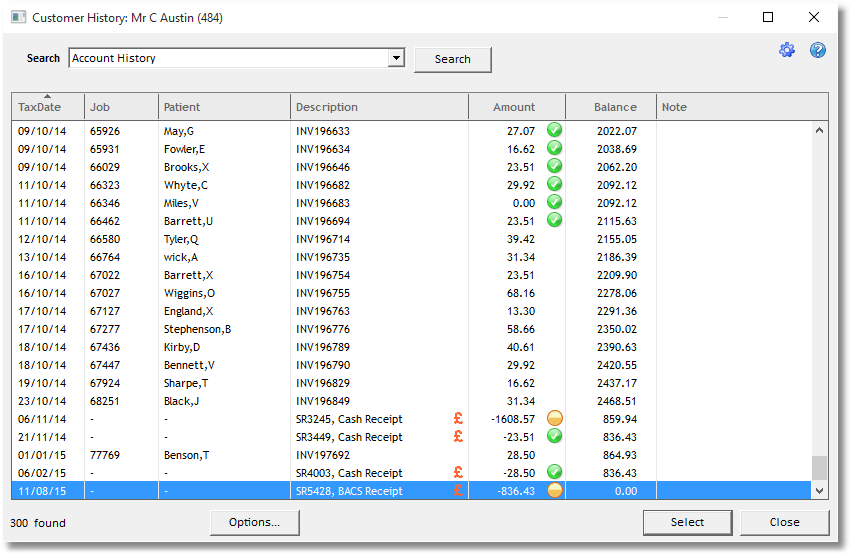
Run the Tools menu > Utilities > Re-allocate payments for customer, and choose "Current customer on form". The process will run and a summary message will appear in the Preview Window, which can be closed.
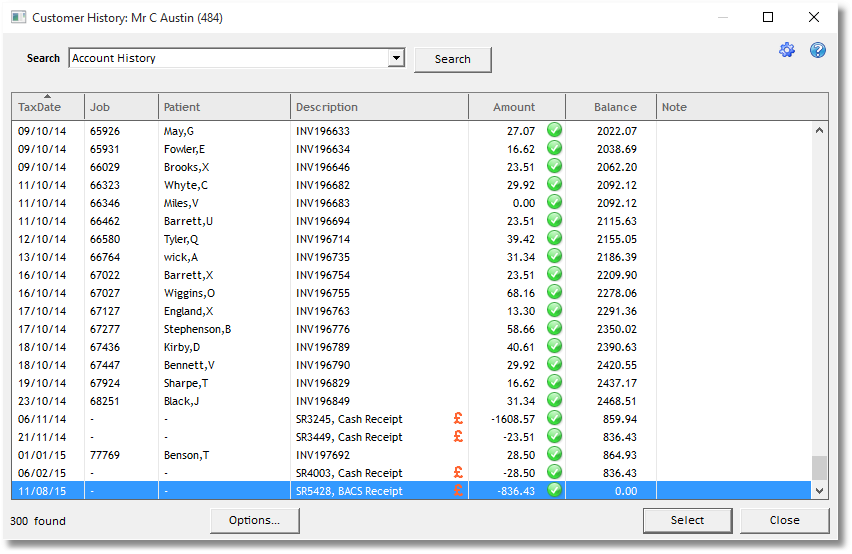
Now the Customer History will show that the Payments have been allocated as much as possible, on an oldest first principal.